

Logic Pro System Overload Causes, Fixes & Performance Guide (2026)
Few things are more frustrating than seeing the “System Overload” message appear while you’re in the middle of recording or mixing a song. Whether you’re producing your first beat or finishing a professional project, this warning can interrupt your workflow, cause playback to stop, and make music production feel impossible.
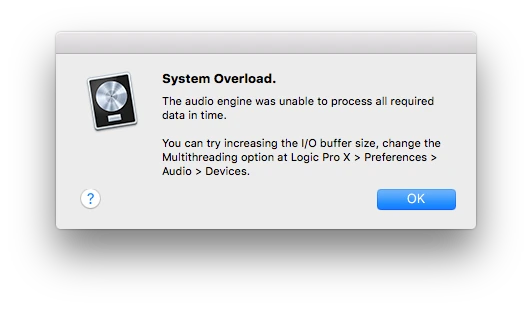
The good news is that a System Overload error doesn’t usually mean something is wrong with your Mac. In most cases, it’s a sign that your computer is temporarily struggling to process everything your project requires in real time.
In this guide, we’ll explain what the Logic Pro System Overload error means, why it happens, and the practical steps you can take to improve performance and keep your sessions running smoothly.

What Is the Logic Pro System Overload Error?
The System Overload warning appears when your Mac cannot process audio fast enough during playback or recording. Logic Pro needs your processor, memory, and storage to work together in real time. If one of those resources becomes overloaded, the software may stop playback and display an error message.
You may notice this problem when:
- Playing projects with many tracks.
- Recording multiple instruments at once.
- Using CPU-intensive plugins.
- Working with large orchestral libraries.
- Mixing sessions with dozens of effects.
Although the warning can be annoying, it is often caused by project settings or system resources rather than a software bug.
Why Does Logic Pro Show a System Overload Message?
There isn’t a single cause. Instead, several factors can contribute to the problem.
Too Many Plugins
Every plugin you add requires processing power. A few EQs or compressors usually aren’t an issue, but dozens of reverbs, virtual instruments, amp simulators, and mastering plugins can quickly increase CPU usage.
Projects that contain many software instruments often demand even more processing than audio-only sessions.
Buffer Size Is Too Low
The I/O Buffer Size determines how much time your Mac has to process audio.
A smaller buffer reduces recording latency, which is great while tracking vocals or instruments. However, it also places more pressure on your processor.
If your project has grown larger since recording began, the original buffer setting may no longer be suitable.
Large Sample Libraries
Modern orchestral libraries, cinematic instruments, and detailed piano samples can use several gigabytes of memory.
If your Mac doesn’t have enough available RAM, Logic Pro may struggle to stream these sounds smoothly, resulting in playback interruptions.
Slow Storage Drive
Logic Pro constantly reads project files, recordings, and samples from storage.
If your project is stored on an older mechanical hard drive instead of an SSD, loading large sessions may become slower, especially when using many audio files.
Background Applications
Music production requires significant system resources.
Applications running in the background—such as web browsers with many tabs, cloud syncing software, video editing tools, or virtual machines—can consume valuable CPU power and memory without you realizing it.
Closing unnecessary applications before opening Logic Pro often improves performance.
How to Fix the Logic Pro System Overload Error
Fortunately, most overload problems can be solved with a few simple adjustments.

Increase the I/O Buffer Size
One of the quickest solutions is increasing the buffer size.
If you’re mixing rather than recording, using a higher buffer gives your Mac more time to process plugins and virtual instruments.
A larger buffer may slightly increase latency, but playback is usually much smoother.

Freeze Tracks
Logic Pro includes a Freeze Track feature that temporarily renders software instrument tracks into audio.
This reduces CPU usage because Logic Pro no longer has to calculate every plugin and instrument in real time.
Freezing tracks is especially useful for:
- Large orchestral projects
- Electronic music productions
- Sessions with many synthesizers
- Songs containing multiple vocal effects
You can always unfreeze a track later if you need to make changes.
Bounce Software Instruments
If you’re happy with a virtual instrument performance, consider bouncing it to audio.
Audio tracks generally require fewer system resources than software instruments loaded with multiple plugins.
This technique is commonly used by professional producers when projects become larger.
Close Unused Plugins
Many plugins continue consuming processing power even when they’re not actively being adjusted.
Remove or bypass effects you no longer need, especially processor-heavy plugins such as:
- Linear phase EQs
- Convolution reverbs
- Oversampling compressors
- Advanced mastering suites
Simplifying your plugin chain can have a noticeable impact on performance.
Apple Silicon vs Intel Macs
If you’re using an Apple Silicon Mac with an M-series processor, you’ll likely experience better Logic Pro performance compared to many older Intel-based Macs.
Apple Silicon chips are designed to handle demanding audio workloads efficiently, making them ideal for projects with large track counts, virtual instruments, and real-time effects.
That said, even powerful Macs can experience System Overload warnings if a project becomes extremely complex or system settings aren’t optimized. Managing plugins, buffer size, and storage remains important regardless of your hardware.
Advanced Performance Tips for Logic Pro
If you’ve already adjusted your buffer size and reduced the number of active plugins but still encounter the System Overload warning, it’s time to optimize your overall workflow. Small improvements in how you manage projects can make a noticeable difference, especially when working on larger sessions.
Enable Low Latency Mode
When recording vocals or instruments, delay between playing and hearing the sound can be distracting. Logic Pro includes Low Latency Mode, which temporarily bypasses plugins that introduce excessive delay.
This feature is especially useful when:
- Recording vocals
- Playing software instruments live
- Recording guitars through an audio interface
- Tracking drums or keyboards
Once recording is complete, you can disable Low Latency Mode to restore all effects during mixing.
Keep Your Projects Organized
Large projects often contain unused tracks, duplicate recordings, and plugins that are no longer needed. Cleaning up your session reduces the workload on your Mac and makes editing easier.
Good project management includes:
- Deleting unused audio regions
- Removing disabled plugins
- Renaming tracks clearly
- Grouping similar instruments together
- Archiving older project versions
A tidy project is not only easier to navigate but can also improve overall performance.
Monitor CPU Usage
Logic Pro includes performance meters that help you understand how your system is handling a project. If you notice CPU spikes during playback, they often point to a demanding plugin or virtual instrument.
Checking performance regularly allows you to identify problems before they interrupt your workflow.
Use an SSD for Projects
Storage speed plays an important role in music production. Projects stored on a solid-state drive (SSD) generally load faster and stream audio more efficiently than those stored on older mechanical hard drives.
If you work with large sample libraries or orchestral instruments, keeping your projects and sound libraries on a fast SSD can reduce loading times and improve playback.
Increase Available Memory
While Logic Pro is efficient with memory, complex projects containing multiple virtual instruments can use a significant amount of RAM.
If your Mac allows memory upgrades, additional RAM can help when working with:
- Large orchestral templates
- Film scoring projects
- Multi-track recordings
- Extensive sample libraries
For Apple Silicon Macs, choose a configuration with enough unified memory when purchasing the device, as it cannot be upgraded later.
Best Logic Pro Settings for Better Performance
Choosing the right settings depends on what you’re doing.
While Recording
- Use a smaller buffer size for lower latency.
- Enable Low Latency Mode if necessary.
- Close unnecessary applications.
- Record to a fast internal or external SSD.
While Mixing
- Increase the buffer size.
- Freeze software instrument tracks.
- Bounce completed MIDI tracks to audio.
- Disable plugins you’re not actively using.
These simple adjustments allow Logic Pro to dedicate more resources to playback and processing.
Common Mistakes That Cause System Overload
Many users accidentally create performance issues without realizing it. Avoiding these common mistakes can help keep your projects running smoothly.
Running Too Many Applications
Streaming video, web browsers with many tabs, and other resource-intensive software can reduce the processing power available to Logic Pro.
Ignoring Software Updates
Apple regularly improves Logic Pro and macOS through updates. Installing compatible updates can fix bugs, improve stability, and optimize performance.
Using Too Many Real-Time Effects
Applying several heavy effects to every track can quickly overwhelm your processor. Consider using shared buses for effects such as reverb and delay instead of inserting separate instances on each track.
Recording Directly to a Slow Drive
Recording and playing back audio from a slow or nearly full drive can cause interruptions. Keep sufficient free space available and use fast storage whenever possible.
FAQS
Why does Logic Pro keep saying “System Overload”?
This usually happens when your Mac cannot process all audio tasks quickly enough. Common causes include heavy plugin usage, low buffer settings, limited memory, or demanding virtual instruments.
Does increasing the buffer size fix the problem?
In many cases, yes. A higher buffer size gives your computer more time to process audio, reducing CPU stress during playback and mixing.
Can plugins cause System Overload?
Yes. Some plugins, particularly advanced reverbs, mastering processors, and virtual instruments, require significant processing power.
Is Logic Pro better on Apple Silicon?
Yes. Logic Pro is highly optimized for Apple Silicon Macs, offering improved performance and efficiency compared to many older Intel-based systems.
Should I freeze tracks?
Freezing tracks is one of the most effective ways to reduce CPU usage in larger projects. It allows Logic Pro to play back rendered audio instead of processing instruments and effects in real time.
Does RAM affect Logic Pro performance?
Yes. More available memory helps when working with large sample libraries and complex sessions that use many virtual instruments.
Will an SSD improve Logic Pro?
An SSD can significantly improve loading times, sample streaming, and overall project responsiveness compared to traditional hard drives.
Does macOS version matter?
Yes. Using a supported and up-to-date version of macOS helps ensure compatibility with the latest version of Logic Pro and its features.
Can background apps slow Logic Pro?
Absolutely. Closing unnecessary applications frees CPU and memory resources, allowing Logic Pro to perform more efficiently.
How can I prevent System Overload in future projects?
Use a balanced workflow: keep projects organized, freeze tracks when needed, use appropriate buffer settings, avoid unnecessary plugins, and store projects on fast SSDs.
Final Thoughts
The Logic Pro System Overload warning can be frustrating, but it is usually a sign that your project is demanding more resources than your current settings or hardware can comfortably provide. Fortunately, most overload issues can be resolved by making a few practical adjustments rather than replacing your computer.
Increasing the buffer size while mixing, freezing tracks, bouncing software instruments to audio, reducing unnecessary plugins, and keeping projects organized are some of the most effective ways to improve performance. Pair these workflow habits with a fast SSD, sufficient memory, and an updated version of macOS, and you’ll enjoy a much smoother production experience.
Instead of viewing the System Overload message as a major problem, think of it as a reminder to optimize your project. By understanding what causes the warning and applying the techniques covered in this guide, you can spend less time troubleshooting and more time creating music.
Related Articles
To continue learning Logic Pro, explore these guides:
- Download Logic Pro for Mac
- Logic Pro Beginner Guide
- Logic Pro Keyboard Shortcuts
- Logic Pro Latest Version
- Logic Pro vs FL Studio
- Logic Pro Tips and Tricks
These resources will help you build a stronger workflow and get the most out of Logic Pro, whether you’re just starting or producing professional-quality music.
 Reliable Knowledge, Fresh Perspectives