

Logic Pro Keyboard Shortcuts Every Beginner Should Know (2026)
Learning Logic Pro can feel overwhelming at first. There are hundreds of buttons, menus, and tools, and it’s easy to spend more time clicking than creating music. The good news is that you don’t need to memorize every feature to become faster. Simply learning a few keyboard shortcuts can make a huge difference in your workflow.
Whether you’re recording vocals, producing beats, editing podcasts, or composing music, keyboard shortcuts help you work more efficiently. Instead of constantly moving your mouse around the screen, you can perform common tasks with just a few key presses.
In this beginner-friendly guide, we’ll cover the most useful Logic Pro keyboard shortcuts that every new user should know.
Why Keyboard Shortcuts Matter
Most professional music producers rely on shortcuts because they save time and help maintain creativity. When inspiration strikes, you don’t want to interrupt your workflow by searching through menus.
Using shortcuts allows you to:
- Work faster
- Edit projects more efficiently
- Spend less time clicking menus
- Focus on creativity instead of navigation
- Build professional production habits
You don’t have to learn every shortcut overnight. Start with a handful of commonly used commands and gradually add more as you become comfortable.
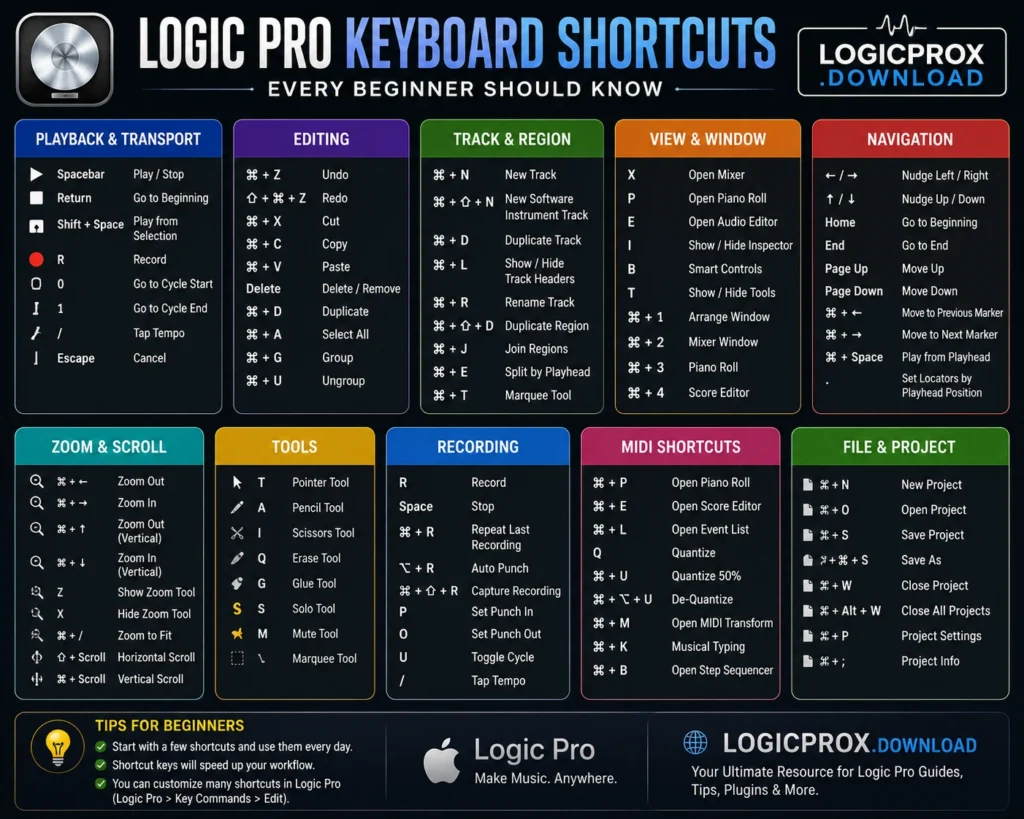
Playback Shortcuts
These are the shortcuts you’ll use almost every time you open Logic Pro.
| Shortcut | Action |
|---|---|
| Spacebar | Play or Stop playback |
| Return | Move the playhead to the beginning |
| Shift + Space | Play from the selected region |
| Escape | Cancel the current action |
These simple shortcuts quickly become second nature.
Recording Shortcuts
Recording is one of the most common tasks in Logic Pro.
| Shortcut | Action |
|---|---|
| R | Start recording |
| Spacebar | Stop recording |
| Control + R | Repeat the selected region |
Knowing these shortcuts means you can start recording without searching for the Record button.
Editing Shortcuts
Editing audio and MIDI becomes much easier once you learn these commands.
| Shortcut | Action |
|---|---|
| Command + Z | Undo |
| Shift + Command + Z | Redo |
| Command + X | Cut |
| Command + C | Copy |
| Command + V | Paste |
| Delete | Remove selected region |
These shortcuts are used constantly during music production.
Track Management Shortcuts
As your projects become larger, organizing tracks becomes more important.
| Shortcut | Action |
|---|---|
| Command + D | Duplicate track or region |
| Command + N | Create a new project |
| Command + S | Save project |
| Command + Shift + S | Save As |
Saving your work regularly is one of the best habits you can develop.
Zoom Shortcuts
Zooming in and out makes editing much easier.
Useful zoom controls include:
- Command + Left Arrow – Zoom Out
- Command + Right Arrow – Zoom In
Many producers use these shortcuts dozens of times during a session.
Navigation Shortcuts
Moving around a large project becomes much quicker with keyboard shortcuts.
Some useful navigation commands include:
- Arrow Keys – Move between regions
- Home (or Return) – Jump to the beginning
- End – Move toward the end of the project
Efficient navigation helps you stay focused during long editing sessions.
Window Shortcuts
Logic Pro includes several useful windows that you can access instantly.
Some common shortcuts include:
| Shortcut | Window |
|---|---|
| X | Mixer |
| P | Piano Roll |
| I | Inspector |
| B | Smart Controls |
| E | Audio Editor |
Learning these shortcuts can significantly speed up your workflow.
Beginner Tips for Learning Shortcuts
Trying to memorize every shortcut at once usually doesn’t work. A better approach is to learn them gradually.
Here are a few practical tips:
Start Small
Begin with five or six shortcuts that you use every day.
Practice During Every Session
Force yourself to use shortcuts instead of clicking menus. After a few days, they’ll become automatic.
Print a Cheat Sheet
Many beginners keep a printed list of shortcuts near their keyboard until they memorize them.
Focus on Your Workflow
If you spend a lot of time editing audio, prioritize editing shortcuts. If you mostly record vocals, focus on recording commands first.
Can You Customize Keyboard Shortcuts?
Yes.
One of Logic Pro’s biggest strengths is that many keyboard shortcuts can be customized to match your personal workflow.
As you become more experienced, you can create shortcuts that fit your production style and make repetitive tasks even faster.
Common Mistakes Beginners Make
Many new users slow themselves down without realizing it.
Some common mistakes include:
- Clicking every menu item instead of using shortcuts.
- Forgetting to save projects frequently.
- Trying to memorize too many shortcuts at once.
- Ignoring built-in keyboard commands.
- Depending entirely on the mouse.
Avoiding these habits can make learning Logic Pro much easier.
FAQS
How many keyboard shortcuts should beginners learn?
Start with around 10–15 of the most common shortcuts. Once these become familiar, you can gradually learn more.
What’s the most useful Logic Pro shortcut?
The Spacebar is probably the most frequently used shortcut because it starts and stops playback instantly.
Can I change Logic Pro keyboard shortcuts?
Yes. Logic Pro allows users to customize many shortcuts to match their workflow.
Are keyboard shortcuts difficult to learn?
Not at all. Most users become comfortable with the basic shortcuts after using them regularly for a few days.
Do professionals use keyboard shortcuts?
Yes. Nearly every professional Logic Pro user relies on shortcuts to improve speed and maintain a smooth creative workflow.
Final Thoughts
Learning keyboard shortcuts is one of the easiest ways to become more confident in Logic Pro. While the software includes a wide range of professional tools, you don’t need to master everything immediately. By starting with the most common shortcuts for playback, recording, editing, and navigation, you’ll spend less time searching through menus and more time creating music.
As your skills improve, these shortcuts will become second nature and help you develop a faster, more enjoyable workflow. Remember that consistency is more important than memorization—use a few shortcuts every day, and before long, they’ll feel completely natural.
Whether you’re producing your first song, recording a podcast, or experimenting with new ideas, mastering keyboard shortcuts is a simple step that can make your Logic Pro experience much smoother.
 Reliable Knowledge, Fresh Perspectives