

Logic Pro No Sound? 10 Real Fixes That Work (2026)
Logic Pro no sound is one of those problems that feels dramatic in the moment: you’re staring at a session that looks completely normal, meters twitching, playhead moving, and yet nothing is coming out of your speakers. The good news: this rarely means your project or your Mac is broken. It nearly always traces back to one of a handful of root causes, and once you understand why each one happens, diagnosing it takes minutes instead of an hour of random clicking.

This guide is organized around the actual cause of the silence, not just a generic list of “things to try.” Figure out which category you’re dealing with first, and you’ll skip straight to the fix that matters.
First, Figure Out What Kind of Silence You’re Dealing With
Before touching any settings, answer this one question: is the silence happening in every app, or just Logic?
Play something in a browser tab or in Music.app. If that’s silent too, you’re not dealing with a Logic problem at all; it’s a macOS audio routing issue or a hardware problem, and no amount of digging through Logic’s settings will fix it.
If other apps play sound fine and only Logic is silent, the problem lives in one of three places: Logic’s audio device configuration, something inside the specific project (a mute, a routing change, a disabled track), or a driver/hardware handshake issue between Logic and your interface. The sections below are ordered roughly by how often each one turns out to be the actual cause.
Cause 1: A Muted Channel, a Pulled-Down Fader, or a Forgotten Solo
This is the single most common source of “no sound” reports, and it’s boring precisely because it’s so easy to overlook. Open the Mixer with X and scan for three things:
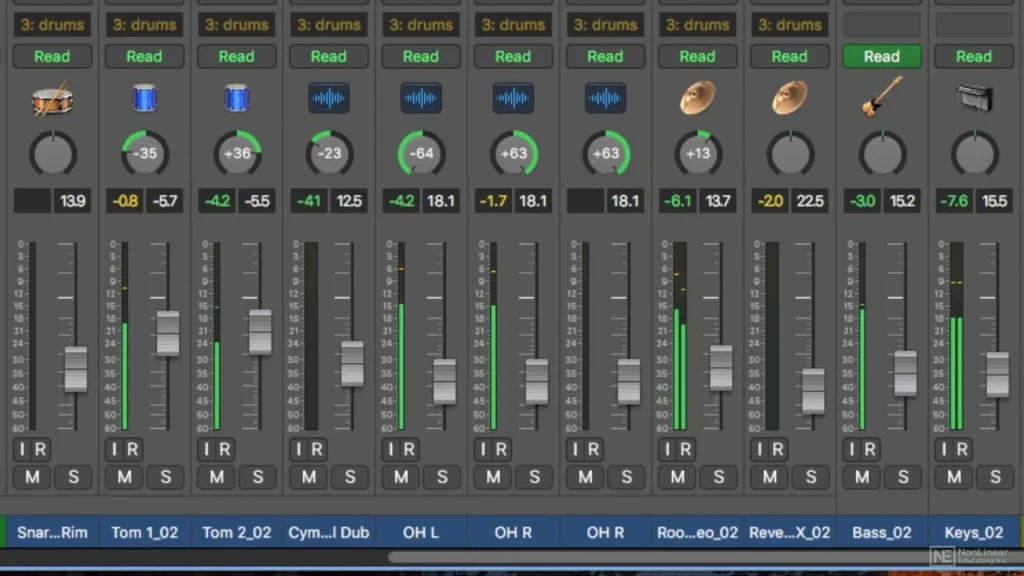
- A Mute button lit up on a track you forgot about
- The Master fader pulled down near negative infinity
- A Solo button engaged on any track — even one you’re not currently looking at, since soloing one track silences every other track in the project
Why this happens so often
Logic’s mute and solo states persist with the project file. If you soloed a bass track three sessions ago to check something and never un-soloed it, that state is still sitting there waiting to confuse you today.
Cause 2: Logic Is Talking to the Wrong Output Device
Macs constantly reassign default audio devices when you plug in headphones, connect a Bluetooth speaker, dock to a monitor with built-in speakers, or wake from sleep. Logic doesn’t always follow along automatically.
Check Logic Pro > Settings > Audio > Devices (in older versions this lives under Preferences > Audio) and confirm the Output Device matches the hardware you’re actually listening through. This is especially common right after connecting an audio interface for the first time in a session — Logic may still be pointed at your Mac’s built-in speakers.
Watch out for Aggregate Devices
If you use an Aggregate Device (common when combining multiple interfaces, or routing input from one device and output through another), this is a frequent failure point. Aggregate Devices can silently drop a component device after a reboot or a USB reconnection, which breaks the routing without any obvious error message.
Cause 3: The Core Audio Engine Has Lost Its Handshake
Logic’s connection to your Mac’s audio hardware occasionally desyncs, usually after your Mac sleeps, after a USB device disconnects unexpectedly, or after another app briefly grabs exclusive control of the audio device. Logic will look completely normal while quietly not producing any actual audio signal.
Fix this without restarting the whole app: Logic Pro > Settings > Audio > General, then toggle the audio engine off and back on. This forces Logic to re-establish its connection to Core Audio from scratch, and it resolves a surprising number of otherwise-unexplainable silent sessions.
Cause 4: Routing Got Changed Somewhere in the Signal Chain
In projects with submixes, aux sends, or bus routing — or in any project you imported tracks into from elsewhere — it’s possible for a track’s output to be pointed somewhere other than Stereo Out. This is different from a mute: the track is technically playing; it’s just not reaching your speakers.
Scroll to the bottom of each channel strip in the Mixer and trace where it actually routes. Pay particular attention to any bus channels — if a bus’s output was changed or a send was removed, everything routed through that bus goes silent even though the source track looks perfectly healthy.
Cause 5: A Disabled or Improperly Frozen Track
Right-click a track header to check whether it’s been disabled — a state that looks almost identical to a normal track at a glance but produces zero audio. Similarly, if a track is frozen and the freeze process didn’t complete cleanly (common after a crash or forced quit), you can end up with a frozen track that shows waveform data but plays nothing until you unfreeze and refreeze it.
Cause 6: Input Monitoring Isn’t On (For Recording Live Instruments or Vocals)
If the silence is specifically about not hearing yourself while playing an instrument or singing — as opposed to not hearing playback — this is a different problem entirely. Check:
- Input Monitoring is enabled on that specific track (the icon resembling a small speaker or sound wave next to record-enable)
- The correct input source is selected for that track, matching the actual input on your interface
- For MIDI/software instruments, that your controller is recognized under Logic Pro > Settings > MIDI, and that the track’s MIDI input isn’t set to a channel your keyboard isn’t transmitting on
Cause 7: Sample Rate Mismatch or an Undersized Buffer
If your project’s sample rate doesn’t match what your interface is actually running at, you can get silence, clicking, or distorted playback depending on how far off the mismatch is. Check Logic Pro > Settings > Audio > Devices and compare against your interface’s own control panel or app (many interfaces, like Focusrite’s or Universal Audio’s, have their own settings utility separate from macOS).
Buffer size and dropouts
A buffer size that’s too small for your current CPU load can also cause dropouts severe enough to sound like total silence rather than crackling. Try raising the I/O buffer size incrementally and see if playback stabilizes.
Cause 8: Outdated or Conflicting Audio Interface Drivers
This shows up disproportionately often right after a macOS update, since Apple’s audio subsystem changes can outpace third-party driver updates. If you’re on an external interface, check the manufacturer’s site for a driver release newer than your last macOS update.
Apple Silicon considerations
On Apple Silicon Macs, it’s also worth confirming the driver has native support rather than running under Rosetta, since older driver versions sometimes behave inconsistently in that mode.
Cause 9: A Plugin Is Silently Choking the Signal
Certain plugins, particularly older third-party ones not fully updated for your current macOS or Logic version, can hang or mute a channel without throwing an error. To isolate this, bypass all plugins on the affected track using Logic’s global bypass shortcut, confirm sound returns, then reintroduce plugins one at a time until you find the one causing it.
Cause 10: Corrupted Preferences (Rare, But Worth Knowing)
If nothing above resolves it, Logic’s own preference file can occasionally become corrupted in a way that produces persistent, unexplainable audio failures across multiple projects. Quit Logic completely, then rename or delete:
~/Library/Preferences/com.apple.logic10.plist
Relaunching Logic rebuilds this file from scratch with default settings. You’ll need to redo any custom preferences, but it clears out corruption that no amount of in-app troubleshooting can touch.
A Faster Way to Narrow It Down
Rather than working through every cause top to bottom, ask yourself these three questions and jump straight to the relevant section:
Is it silent in every project, or just one?
Every project points to a device/driver/routing issue (Causes 2, 3, 7, 8). One specific project points to something inside that session (Causes 1, 4, 5, 9).
Did it start right after a specific event?
A macOS update, plugging in new hardware, or reconnecting an interface — that timing usually points directly at Causes 2, 3, or 8.
Is it playback that’s silent, or your live input while recording?
Live input silence is almost always Cause 6, not a device or routing problem.
Wrapping Up
Logic Pro’s audio system has a lot of moving parts — device routing, Core Audio, mixer states, plugin chains, and “no sound” can technically originate from any layer of that stack. But in practice, the overwhelming majority of cases come down to something small: a stray mute, a wrong output device, or a Core Audio handshake that needs a reset. Work through the causes above in order, and you’ll almost always find the answer well before reaching the more obscure fixes at the bottom of the list.
If you’ve exhausted everything here and you’re still stuck, it’s worth searching for your specific interface model plus your macOS version; some silent-audio bugs are tied to particular hardware and software combinations, and there’s a decent chance someone else has already documented the exact fix on Apple’s support forums or the manufacturer’s community pages.