

Logic Pro Running Slow? A Real Troubleshooting Guide
There’s a specific kind of frustration that comes with a Logic Pro session that used to run fine and now stutters, clicks, or grinds to a halt every time you add one more track. The meters are pegged, the CPU indicator is red, playback is glitching, and it feels like your Mac just isn’t powerful enough anymore, even though it was handling this fine a month ago.
Most of the time, that instinct is wrong. Logic Pro slowdowns almost always trace back to a specific, fixable cause rather than a genuine hardware ceiling: bloated automation data, a misbehaving plugin, a buffer size mismatched to what you’re doing, or a project that’s quietly outgrown its own housekeeping. This guide walks through those causes in the order they’re most likely to be the culprit, so you can find yours quickly instead of guessing.

First, Figure Out What Kind of Slowness You’re Dealing With
Before changing any settings, narrow down where the slowdown is actually happening, because the fix is different depending on the answer:
- Playback stutters or clicks, but the interface itself feels responsive — this points to the audio engine: buffer size, plugin load, or a specific track choking the processor.
- Everything feels sluggish, including scrolling, opening menus, and clicking — this points to the UI/graphics side, or to macOS itself running low on resources.
- It only happens in one specific project, not others — the problem lives inside that project (bloated automation, a runaway plugin, too many tracks with heavy processing), not in your system.
- It happens in every project, even a brand-new empty one — the problem is systemic: drivers, buffer settings, background processes, or genuine hardware limitations.
Keep your answer in mind as you go — it’ll tell you which of the causes below is worth checking first.
Cause 1: Buffer Size Is Set Too Low for What You’re Doing
The I/O buffer size controls the tradeoff between latency and processing headroom. A small buffer (64 or 128 samples) gives you near-instant response when playing live instruments, but it also forces your CPU to process audio in smaller, more frequent chunks — which is far more demanding during mixing or playback of a dense project.
Go to Logic Pro > Settings > Audio > Devices and raise the I/O buffer size (try 256 or 512 for mixing, higher still for pure playback where latency doesn’t matter). If you only need a small buffer while actively recording or playing an instrument in real time, raise it back up afterward — a huge number of “slow” reports are really just a buffer setting left over from a tracking session.
Cause 2: One or Two Plugins Are Doing Most of the Damage
Not all plugins are created equal. Convolution reverbs, oversampled saturation/distortion plugins, orchestral sample libraries, and anything doing real-time spectral analysis or resynthesis can chew through CPU cycles far more aggressively than a basic EQ or compressor — even a small number of them can bottleneck an entire session.
How to find the culprit
Open the CPU meter in the control bar (or Window > Show Performance Meters) while playback runs, and watch which moment causes the spike. Then bypass plugins on individual tracks one at a time — starting with anything doing reverb, convolution, or heavy synthesis — until the spike disappears. Once you’ve found it, consider whether you actually need it running live, or whether it’s better bounced/frozen (see Cause 4).
Cause 3: Sample-Accurate Automation and Excessive MIDI Data
Automation curves with an enormous number of points — especially from recorded MIDI CC data, pitch bend, or a controller sending continuous data — can quietly balloon a project’s processing overhead in a way that’s easy to miss, since it doesn’t show up as an obvious spike on a single track.
Check tracks with heavy automation (particularly anything recorded live from a hardware controller) and consider thinning out redundant automation points. Logic has a built-in automation “thin” function under the automation menu that removes near-duplicate points without audibly changing the curve.
Cause 4: Too Many Live Tracks Instead of Frozen or Bounced Ones
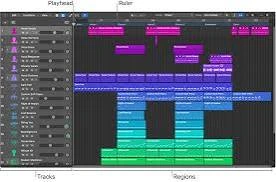
Every software instrument and every active plugin chain in your session is competing for the same processing budget in real time. As projects grow — more tracks, more layered instruments, more parallel processing — that budget runs out even on strong machines.
Freeze tracks you’re not actively editing
Right-click a track header and choose Freeze to render that track’s processing to disk temporarily, freeing up the CPU load it was consuming. This is especially valuable for software instrument tracks with sample libraries or synths, which tend to be far more demanding than simple audio tracks.
Bounce in place for tracks you’re finished with
For tracks you’re confident you won’t need to re-edit, bouncing in place converts a processed, plugin-heavy track into a straightforward audio file — permanently reducing the ongoing processing load rather than just deferring it like a freeze does.
Cause 5: Background Processes Eating Into Available Resources
macOS runs plenty of things in the background that compete with Logic for CPU, memory, and disk access — cloud sync services (iCloud, Dropbox, Google Drive), Spotlight indexing after a large file operation, Time Machine backups kicking off mid-session, and browser tabs are common offenders.
Check Activity Monitor while Logic is struggling and sort by CPU usage. If something unexpected is consuming a significant chunk, pause it — cloud sync services in particular are worth pausing during a session, since they can spike disk and CPU usage at unpredictable moments.
Cause 6: Your Sample Library or Project Files Are on a Slow or Full Drive
Streaming sample libraries (orchestral instruments, drum libraries, anything sample-based) read directly from disk in real time. If your samples live on an external drive with a slow connection, or if your internal drive is nearly full, disk I/O becomes the bottleneck rather than the CPU — and this shows up as glitching and dropouts that look identical to a CPU problem but have a completely different cause.
Quick checks
- Confirm you have at least 15-20% free space on your system drive — macOS and Logic both need working room for caching and virtual memory.
- If sample libraries are on an external drive, make sure it’s connected via a fast, reliable interface (Thunderbolt or USB-C rather than an older USB-A port or a network drive over Wi-Fi).
Cause 7: An Outdated macOS, Logic, or Plugin Version
Performance regressions and fixes both happen regularly across Logic Pro updates, macOS updates, and third-party plugin updates. Running an older combination of any of these — especially an older plugin that hasn’t been updated for your current macOS version — can introduce inefficiencies that a simple update resolves.
Check for updates to Logic Pro itself, to macOS, and specifically to any CPU-heavy third-party plugins you identified in Cause 2. This is easy to overlook because Logic itself might be current while a specific plugin quietly lags several versions behind.
Cause 8: Process Buffer Range Set Incorrectly for Your Session Type
Beyond the basic I/O buffer, Logic has a separate Process Buffer Range setting (also under Audio settings) that affects how far ahead the software processes audio for plugins with heavy lookahead requirements. Setting this to “Large” generally improves stability and CPU headroom for mixing-focused sessions, at the cost of slightly higher latency — which is irrelevant if you’re not recording live in that moment.
Cause 9: Real-Time Effects on a Track You Should Be Printing Instead
If you’re running the same heavy plugin chain in real time repeatedly — a mastering chain on your entire mix bus while still editing individual tracks, for example — you’re paying that CPU cost on every single playback pass. Consider bouncing the elements you’ve finalized and reserving your live processing budget for tracks that are still genuinely in progress.
Cause 10: Genuine Hardware Limitations
After ruling out everything above, it’s fair to consider whether your Mac’s CPU, RAM, or drive speed is simply undersized for the scale of what you’re building — a session with dozens of tracks, heavy sample libraries, and dense processing genuinely asks more of a base-model machine than of a higher-end one. If performance meters show consistently high load even in a well-optimized project with frozen tracks and reasonable plugin counts, that’s a legitimate signal rather than a setting to chase further.
A Faster Way to Narrow It Down
Does it happen in a brand-new, empty project too?
If yes, the issue is systemic; check buffer settings, background processes, and drivers (Causes 1, 5, 7) before assuming it’s project-specific.
Did it start after adding a specific plugin or sample library?
That’s a strong signal to isolate that exact addition first (Cause 2) rather than working through the whole list.
Does the CPU meter show one track spiking, or a broad, even overload?
One track spiking points to a specific plugin or instrument (Cause 2). A broad, even overload across many tracks points to overall project density — too many live tracks, heavy automation, or a buffer mismatch (Causes 1, 3, 4).
FAQS
Why does Logic Pro slow down as a project gets bigger, even on a powerful Mac?
Every additional live plugin, software instrument, and automation lane adds to the same real-time processing budget, regardless of how fast your Mac is. Powerful machines simply have a higher ceiling before that budget runs out — they don’t remove the ceiling entirely. Freezing or bouncing finished tracks is what keeps a growing project inside that budget.
Should I lower my sample rate to improve performance?
It can help, since a lower sample rate means less data to process per second, but it’s a tradeoff against audio quality and isn’t reversible without reprocessing existing audio. It’s usually worth exhausting buffer size, plugin, and freezing fixes first, since those don’t cost you anything in quality.
Does closing other apps actually make a noticeable difference?
Yes, more than people expect, especially browsers, which can hold onto significant memory and occasionally spike CPU usage in background tabs. Cloud sync clients and video calls are the other common offenders worth closing during a demanding session.
Is it normal for Logic Pro to use close to 100% of one CPU core while the rest sit idle?
This usually points to a single track or plugin that isn’t multithreading well, rather than an overall system limitation. Logic distributes most processing across cores, but certain plugin chains or a single heavy real-time instrument can bottleneck on one core specifically. This is a strong signal to check Cause 2 before assuming you need more powerful hardware.
Will an external SSD improve performance if my sample libraries are on my internal drive already?
Not usually, if your internal drive is already fast (which is standard on modern Macs) and has enough free space. An external drive mainly helps when your internal drive is nearly full or when you’re currently running samples from a slow network location or an older external drive.
Wrapping Up
Logic Pro is built to handle genuinely large sessions, so persistent slowness is rarely a sign that you’ve simply outgrown your Mac. It’s far more often one specific plugin, one buffer setting left over from a different task, or a project that’s accumulated automation and live tracks faster than it’s been frozen or bounced down. Work through the causes above, starting with buffer size and plugin load, the two most common culprits — and you’ll usually find the fix well before you need to consider a hardware upgrade.
If you’re still hitting a wall after working through all of this, it’s worth checking whether your specific plugin combination or sample library has known performance issues documented on the manufacturer’s support pages or in the Logic Pro community forums — some performance quirks are tied to particular software combinations rather than anything you’re doing wrong.
 Reliable Knowledge, Fresh Perspectives