
How to Add Plugins to Logic Pro X (Step-by-Step Guide for Beginners)
If you’re wondering how to add plugins to Logic Pro X, you’re in the right place. Plugins are one of the best ways to expand Logic Pro X, giving you access to new virtual instruments, creative effects, guitar amps, vocal processors, and professional mixing tools.
The good news is that adding plugins to Logic Pro X is simple once you understand how Apple’s Audio Unit (AU) plugin system works. Whether you’ve just downloaded a free plugin or invested in a professional plugin bundle, this guide will walk you through the entire process in easy-to-understand language.

By the end of this guide, you’ll know how to install plugins, load them into your projects, troubleshoot common problems, and keep your plugin library organized.

What Are Plugins in Logic Pro X?
Plugins are software tools that add new sounds or effects to your music projects. They work inside Logic Pro X and help you create, shape, and improve your recordings.
There are two main types of plugins:
| Plugin Type | Purpose | Examples |
|---|---|---|
| Instrument Plugins | Create sounds | Synthesizers, pianos, drum machines, samplers |
| Effect Plugins | Process audio | EQ, compression, reverb, delay, distortion |
Logic Pro X already includes an excellent collection of built-in plugins, but third-party plugins give you even more creative options.
Which Plugin Format Does Logic Pro X Support?
One of the most common mistakes beginners make is downloading the wrong plugin format.
Logic Pro X only supports Audio Units (AU) plugins.

Here’s a quick comparison:
| Plugin Format | Supported in Logic Pro X? |
|---|---|
| Audio Units (AU) | Yes |
| VST | No |
| VST3 | No |
| AAX | No |
When downloading plugins, always choose the AU version if it’s available.
Before Installing Plugins
Before you begin, make sure you:
- Download plugins from trusted developers.
- Check that the plugin is compatible with your version of macOS.
- Confirm it supports your Mac (Apple silicon or Intel, depending on your system).
- Close Logic Pro X before installing new plugins.
These simple checks can prevent many installation problems.
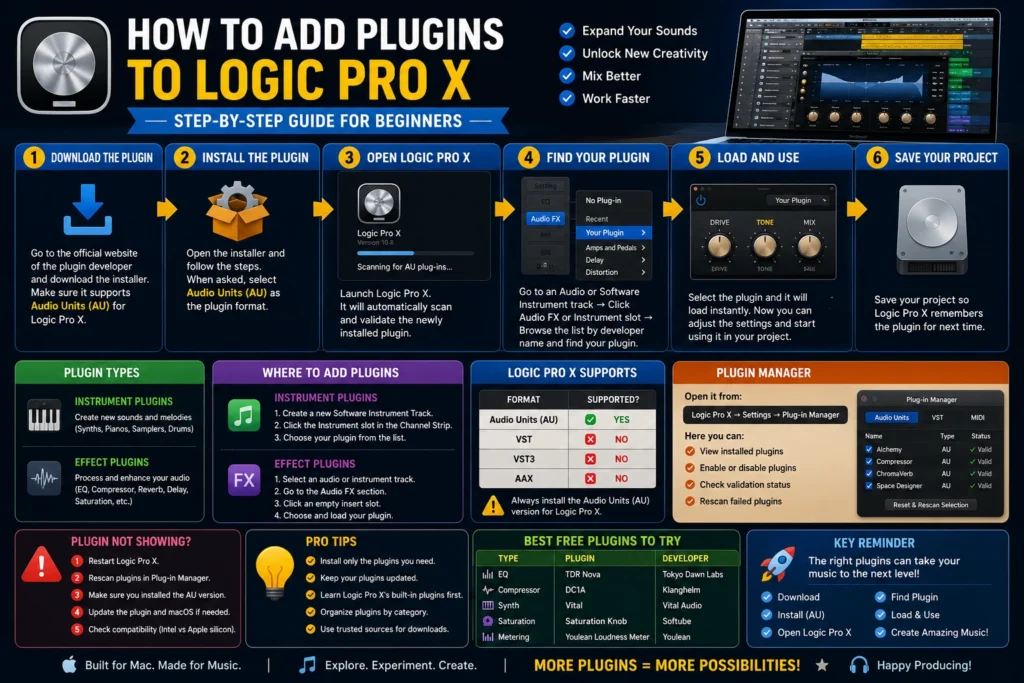
Step 1: Download the Plugin
Visit the developer’s official website and download the installer.
Most plugins are available as:
Always choose the latest version to ensure the best compatibility with Logic Pro X.
Step 2: Install the Plugin
Open the installer and follow the on-screen instructions.
Many installers ask which plugin formats you want to install.
If you see options like:
- AU
- VST
- VST3
- AAX
Select Audio Units (AU).
You can also install other formats if you use different DAWs, but Logic Pro X only uses the AU version.
Step 3: Open Logic Pro X
After installation:
- Launch Logic Pro X.
- Wait while Logic scans for new plugins.
- If the plugin passes validation, it will be added to your plugin library automatically.
For most users, that’s all it takes.

How to Add an Instrument Plugin
Virtual instruments are loaded onto software instrument tracks.
Follow these steps:
- Create a new Software Instrument Track.
- Open the Channel Strip.
- Click the Instrument slot.
- Browse to the plugin manufacturer.
- Select your instrument.
Your new virtual instrument is now ready to play with a MIDI keyboard or the Piano Roll.
How to Add an Effect Plugin
Audio effects are inserted directly onto audio or instrument tracks.
Steps:
- Select the track you want to edit.
- Locate the Audio FX section in the Channel Strip.
- Click an empty insert slot.
- Choose the plugin manufacturer.
- Select the desired effect.
The plugin window opens automatically, allowing you to adjust its settings.
How to Find Installed Plugins
Logic Pro X organizes plugins by developer.
To browse them:
Audio FX → Manufacturer → Plugin Name
or
Instrument → Manufacturer → Instrument Name
If you install many plugins, learning the developer names makes them much easier to find.

How to Check Plugin Manager
Logic Pro X includes a built-in Plugin Manager that lets you manage installed plugins.
To open it:
Logic Pro → Settings → Plug-in Manager
Here you can:
- View installed plugins
- Enable or disable plugins
- Check validation status
- Rescan failed plugins
This is the first place to look if a plugin doesn’t appear in your library.
What to Do If Your Plugin Doesn’t Show Up
Sometimes a plugin installs correctly but doesn’t appear inside Logic Pro X.
Try these fixes:
Restart Logic Pro X
Close the application completely and reopen it.
Rescan Plugins
Open the Plug-in Manager and rescan the plugin.
Check the Plugin Format
Make sure you installed the AU version instead of VST or AAX.

Update the Plugin
Older plugins may not support the latest version of Logic Pro X or macOS.
Download the newest version from the developer’s website.
Check Compatibility
Some older plugins are designed for Intel Macs only and may not work properly on newer Apple silicon systems without updates.
Organize Your Plugins
As your collection grows, organization becomes important.
A simple workflow might include categories such as:
- EQ
- Compression
- Reverb
- Delay
- Synths
- Drums
- Guitar
- Vocals
- Mastering
Keeping your favorite plugins easy to find speeds up your workflow.
Best Free Plugins for Logic Pro X
If you’re just getting started, consider trying a few free plugins from well-known developers.
| Plugin Type | Example |
|---|---|
| EQ | TDR Nova |
| Compressor | DC1A |
| Synth | Vital |
| Saturation | Softube Saturation Knob |
| Metering | Youlean Loudness Meter |
Free plugins are a great way to expand your toolkit without spending money.
Common Plugin Installation Mistakes
Avoid these common problems:
- Downloading the VST version instead of AU.
- Installing outdated plugin versions.
- Forgetting to restart Logic Pro X.
- Ignoring macOS compatibility requirements.
- Installing plugins from untrusted sources.
Taking a few extra minutes during installation can save hours of troubleshooting later.
Pro Tips
Install Only What You Need
Too many plugins can clutter your workflow. Focus on a small set of reliable tools and learn them well.
Keep Plugins Updated
Developers regularly release updates to fix bugs, improve performance, and ensure compatibility with new macOS and Logic Pro versions.
Learn the Built-in Plugins First
Logic Pro X already includes outstanding stock plugins. Mastering them will improve your mixing skills and help you understand when a third-party plugin truly adds value.
FAQS
How to Add Plugins to Logic Pro X?
Install the plugin, making sure you select the Audio Units (AU) format. Then open Logic Pro X, allow it to scan the new plugin, and load it from the Instrument or Audio FX menu.
Why can’t I see my plugin in Logic Pro X?
The most common reasons are installing the wrong plugin format, failed validation, outdated software, or compatibility issues with your version of macOS.
Does Logic Pro X support VST plugins?
No. Logic Pro X supports Audio Units (AU) plugins only.
Where is the Plug-in Manager?
Open Logic Pro → Settings → Plug-in Manager to view, validate, and manage your installed plugins.
Can I use free plugins in Logic Pro X?
Yes. Many high-quality free Audio Units plugins work perfectly with Logic Pro X.
Should I use built-in or third-party plugins?
For most users, the built-in plugins are more than capable of producing professional results. Third-party plugins can expand your creative options, but they aren’t required to make great music.
Final Thoughts
Learning how to add plugins to Logic Pro X is an important step toward getting more from your music production setup. Once you understand that Logic uses the Audio Units (AU) format, installing and managing plugins becomes straightforward.
Start by learning Logic Pro X’s excellent built-in plugins, then gradually add trusted third-party tools that match your workflow. By keeping your plugins organized, up to date, and compatible with your system, you’ll spend less time troubleshooting and more time creating music.
Whether you’re producing beats, recording vocals, mixing a band, or composing film scores, the right plugins can help you work faster and unlock new creative possibilities.
 Reliable Knowledge, Fresh Perspectives