

How to Export Logic Pro as MP3 (2026 Guide)
After spending hours recording, editing, and mixing your music in Logic Pro, the final step is exporting your project into a format you can easily share. While Logic Pro can export in several audio formats, MP3 remains one of the most popular because it’s compatible with almost every device and platform.
Whether you’re sending a demo to a client, uploading a song to social media, or sharing music with friends, exporting as MP3 is quick and easy once you know where to find the right settings.
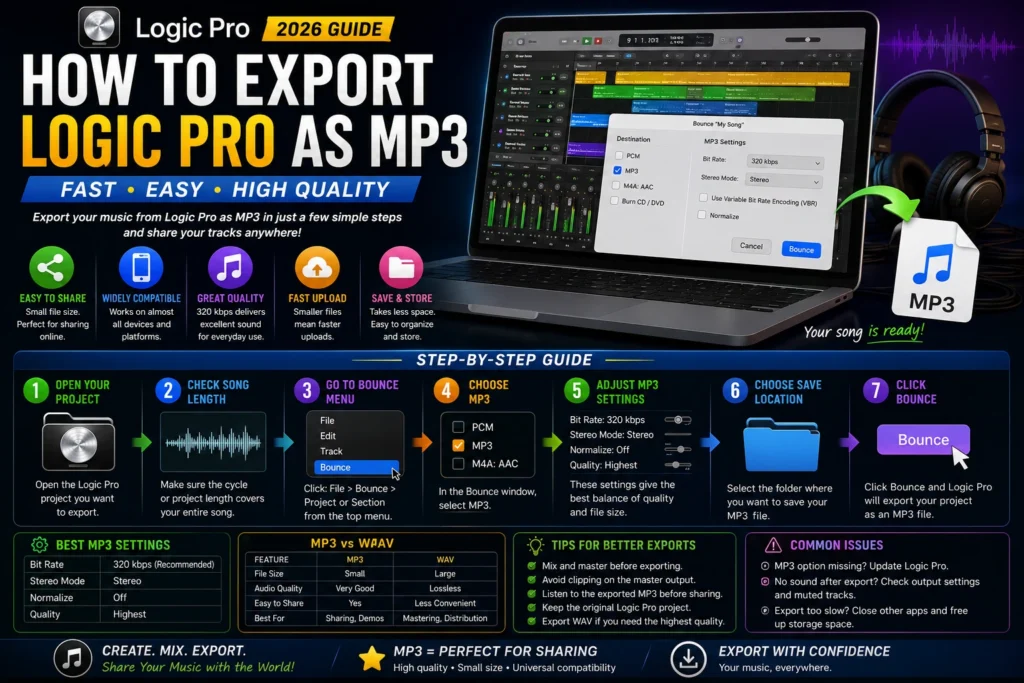
This guide will walk you through the entire process in simple language, making it easy even if you’re using Logic Pro for the first time.
Why Export as MP3?
MP3 files are smaller than WAV or AIFF files, making them easier to upload, email, and store.
Benefits include:
- Smaller file size
- Fast uploads
- Compatible with most devices
- Easy to share online
- Great for demos and previews
If you’re releasing music on streaming platforms, you may also need a WAV version, but MP3 is perfect for everyday sharing.
Before You Export
Before creating your MP3 file, make sure:
- Your project is fully mixed.
- There are no unwanted noises.
- The song starts and ends correctly.
- The volume levels are balanced.
- Save your project.
Taking a minute to review your mix can prevent mistakes in the final export.
How to Export Logic Pro as MP3
Follow these simple steps.
Step 1: Open Your Project
Launch Logic Pro and open the project you want to export.
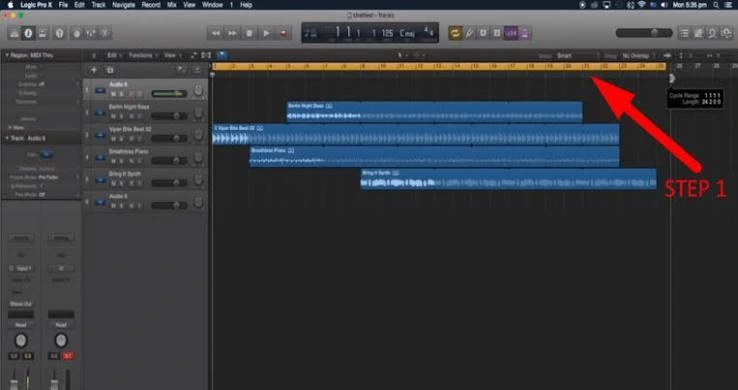
Step 2: Select the Song Length
Ensure the project start and end points cover your entire song.
Step 3: Open the Export Menu
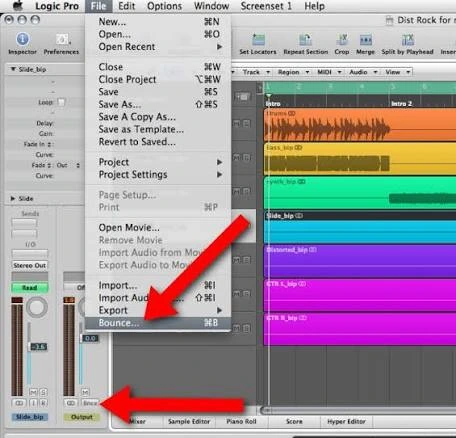
This opens the Bounce window where you can choose your export settings.
Step 4: Choose MP3
From the top menu bar, click:
File → Bounce → Project or Section
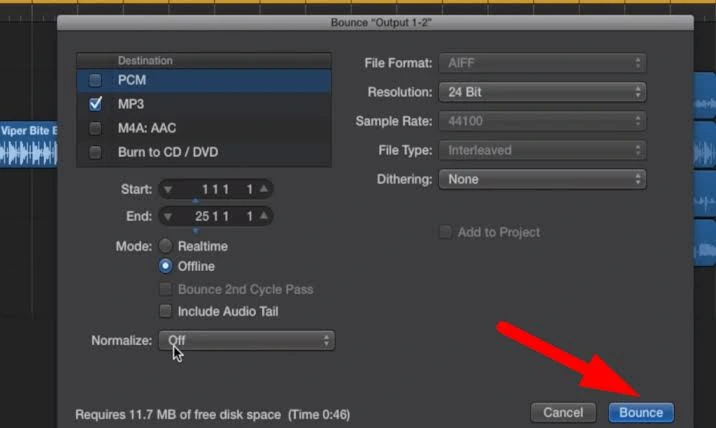
In the Bounce window:
- Check the MP3 option.
- Leave WAV selected too if you want both formats.
Step 5: Adjust MP3 Settings
For most users, these settings work well:
| Setting | Recommended |
|---|---|
| Bit Rate | 320 kbps |
| Stereo Mode | Stereo |
| Normalize | Off |
| Quality | Highest |
Using a 320 kbps bitrate provides excellent sound quality while keeping file sizes manageable.
Step 6: Choose a Save Location
Select the folder where you want your MP3 to be saved.
Choose a location that’s easy to remember, such as your Desktop or Music folder.
Step 7: Click Bounce
Press the Bounce button.
Logic Pro will export your project as an MP3 file. The time required depends on the size and complexity of your project.
Best Export Settings
For the best balance between quality and file size:
| Purpose | Recommended Format |
|---|---|
| Music Sharing | MP3 320 kbps |
| Streaming Demo | MP3 320 kbps |
| Email Attachments | MP3 192–320 kbps |
| Professional Master | WAV or AIFF |
MP3 vs WAV
| Feature | MP3 | WAV |
|---|---|---|
| File Size | Small | Large |
| Audio Quality | Very Good | Lossless |
| Easy to Share | Yes | Less Convenient |
| Best For | Sharing & Listening | Mastering & Distribution |
If you’re sending music to a mastering engineer, export a WAV file. For casual listening and sharing, MP3 is usually the better choice.
Common Export Problems
MP3 Option Missing
If you don’t see MP3 in the Bounce window:
- Update Logic Pro.
- Check your export settings.
- Restart the application.
No Sound After Export
Possible causes include:
- Muted tracks
- Incorrect output routing
- Plugins causing issues
- Automation muting the mix
Always listen to your exported file before sharing it.
Export Takes Too Long
Large projects with many plugins may require more time.
To speed up exporting:
- Close unnecessary applications.
- Freeze heavy tracks.
- Increase available storage space.
- Restart your Mac.
Tips for Better MP3 Exports
- Mix before exporting.
- Avoid clipping on the master output.
- Listen to the final MP3 using headphones and speakers.
- Keep the original Logic project.
- Export a WAV version for backup.
FAQS
Can Logic Pro export directly to MP3?
Yes. Logic Pro allows you to export projects directly as MP3 from the Bounce menu.
What is the best MP3 bitrate?
For most users, 320 kbps provides the best balance between quality and file size.
Should I export WAV or MP3?
Use WAV for professional mastering and distribution. Use MP3 for sharing, emailing, and uploading demos.
Why is my exported MP3 quiet?
Check your master output level, limiter settings, and normalization options before exporting.
Does exporting as MP3 reduce quality?
MP3 is a compressed format, so there is some quality loss compared to WAV. However, at 320 kbps, the difference is minimal for most listeners.
Final Thoughts
Exporting your project as an MP3 in Apple Logic Pro is simple once you know where to find the Bounce settings. By choosing the right bitrate and reviewing your mix before exporting, you can create high-quality MP3 files that sound great on phones, computers, and streaming platforms.
Whether you’re sharing a demo, sending music to clients, or uploading songs online, following the steps in this guide will help you export your music quickly and with confidence.